Passwords have been the standard way to access online accounts for many years. However, remembering multiple passwords, creating strong combinations, and protecting them from phishing and data breaches can be challenging.
Passkeys offer a modern alternative. Instead of typing a password every time you sign in, you can verify your identity using your device's built-in security features, such as fingerprint recognition, Face ID, Windows Hello, or your device PIN.
Passkeys are designed to make authentication faster, simpler, and more resistant to common online attacks. They are based on established security standards developed by the FIDO Alliance and the World Wide Web Consortium (W3C).
PhotoZone Graphy supports passkey authentication so that users can access their accounts more conveniently without having to enter their email address and password every time.
This guide explains what passkeys are, how they work, how your information is protected, and how different devices use them.
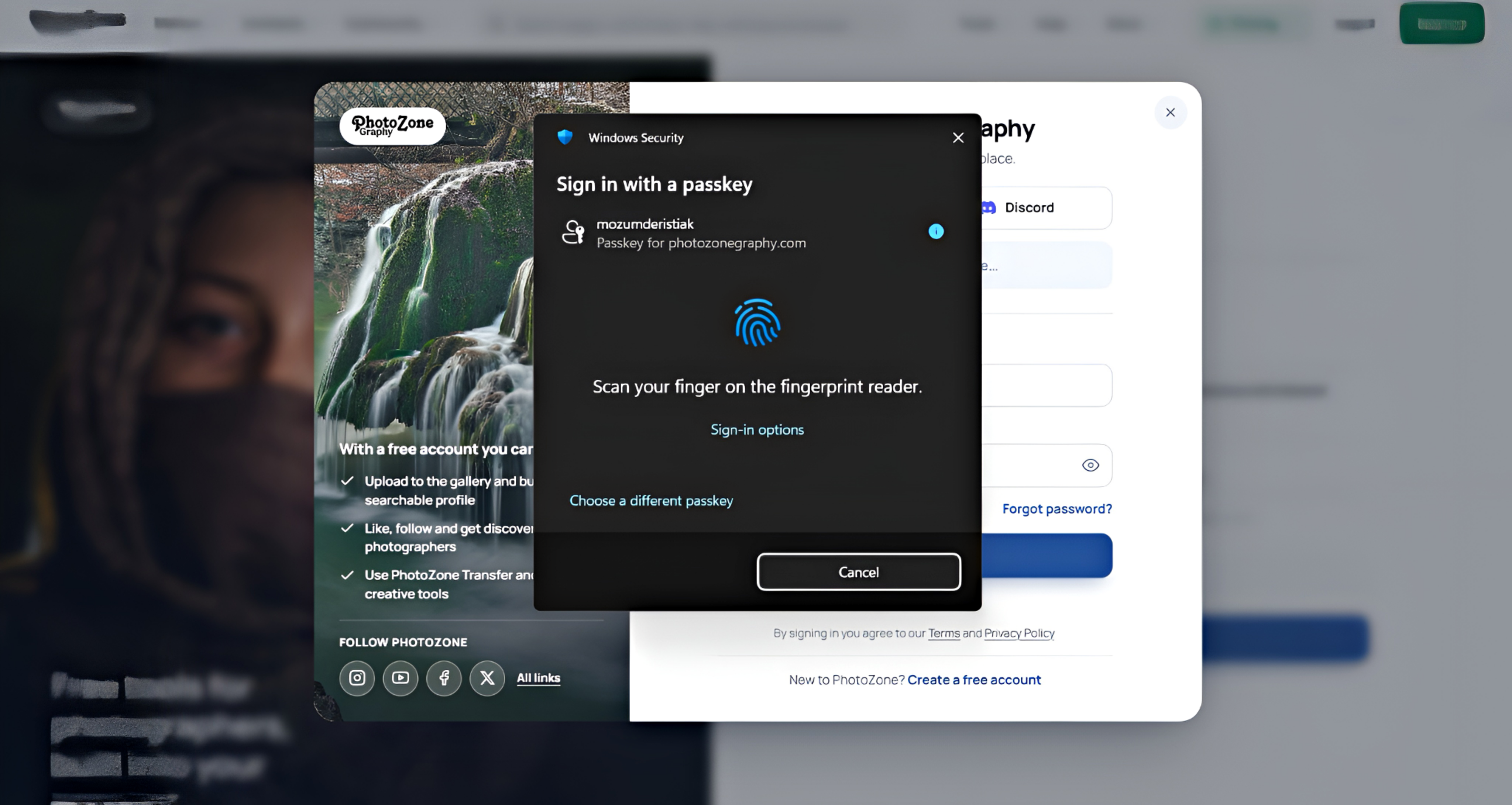
1. What Is a Passkey?
A passkey is a digital authentication credential that allows you to sign in to a website or application without entering a traditional password.
Instead of remembering a password, you use a credential securely associated with your device or a supported password manager. When you want to sign in, your device asks you to verify your identity using an available security method.
Depending on your device, this may include:
Fingerprint recognition.
Facial recognition, such as Apple's Face ID.
A device PIN or passcode.
Windows Hello.
Another supported device authentication method.
For example, if you have a compatible Android phone with a fingerprint reader, you can use your fingerprint to approve a passkey sign-in. If you use an iPhone with Face ID, you can simply look at your device when prompted.
You do not need to remember or manually enter a separate password for that passkey.
Passkeys are built on FIDO2 and WebAuthn standards, which are supported across modern operating systems, browsers, and authentication platforms.
2. How Does Passkey Technology Work?
The most important part of passkey technology is that it does not rely on sharing a password or biometric information with the website.
Instead, it uses a security method called public-key cryptography, also known as asymmetric cryptography.
When a passkey is created, two mathematically related cryptographic keys are generated:
1. Public Key
The public key is registered with the website or service where you want to use the passkey. It can be stored on the service's server and is used to verify your authentication.
2. Private Key
The private key is kept protected by your device or passkey provider. It is the sensitive part of the credential and is used to prove that you own the registered passkey.
The public key and private key work together, but they serve different purposes. The public key cannot be used to calculate or reconstruct the private key.
This means that even if someone obtains the public-key information stored by a website, they cannot simply use it to sign in as you.
Understanding the process
Imagine that you want to register a passkey with PhotoZone Graphy.
You request to add a passkey to your account.
Your browser and device communicate to create a new cryptographic credential.
Your device or supported passkey provider generates a unique key pair.
The private key remains protected by the authenticator or passkey provider.
The corresponding public-key information is registered with PhotoZone Graphy.
Your account is now associated with that passkey.
When you return to sign in, PhotoZone Graphy sends a new authentication challenge.
Your device uses the private key to create a cryptographic response to that challenge. PhotoZone Graphy then verifies the response using the registered public key.
If the response is valid, the authentication succeeds.
The website does not need to receive your fingerprint, Face ID information, device PIN, or private key to complete this process.
3. How Does Fingerprint or Face Recognition Work With Passkeys?
A common misunderstanding is that a website receives your fingerprint or facial information when you use biometric authentication.
That is not how passkeys work.
Your device performs biometric verification locally. The biometric system checks whether the person attempting to use the device matches an authorised user.
If verification succeeds, the device allows the protected passkey to be used.
The website receives the cryptographic authentication response, not a copy of your fingerprint or face.
For example:
You place your finger on your phone's fingerprint sensor.
Your device verifies your fingerprint locally.
The device authorises the passkey operation.
The passkey creates the required cryptographic response.
The website verifies the response and allows you to sign in.
The same principle applies to facial recognition.
Your biometric information remains on your device. PhotoZone Graphy does not receive your fingerprint image, facial scan, or biometric template when you sign in using a passkey.
You can also use a PIN or device passcode when biometric authentication is unavailable or when your device requests an alternative verification method.
4. How Is Passkey Information Stored?
Passkeys are different from traditional passwords, and their storage mechanism is one of the reasons they offer stronger protection.
With a conventional password-based system, a website needs to store password verification information so that it can check whether the password entered by a user is correct. Even when passwords are properly hashed, a stolen password database can become a target for offline attacks.
Passkeys use a different approach.
The website stores the public-key credential and associated registration information required to recognise and verify the passkey. The private key remains protected by the user's authenticator or passkey provider.
Some credential identifiers or related values may also be represented or indexed using cryptographic hashes, depending on the implementation. A hash is a one-way mathematical transformation: it is not a password that can simply be decrypted to reveal the original biometric information.
How PhotoZone Graphy handles passkey information
PhotoZone Graphy uses passkey authentication to verify registered credentials without collecting users' fingerprints or facial recognition data.
The server-side authentication records contain the information required to identify and verify registered passkeys. Certain stored identifiers or related values may be maintained in hashed form as part of the security implementation.
Authorised administration personnel may have access to relevant stored authentication records for technical maintenance and account-security purposes. However, access to these records does not give them the ability to view your fingerprint, Face ID information, or reconstruct the private key protected by your device.
In other words:
Your biometric information stays on your device.
Your private key is not sent to PhotoZone Graphy.
The server uses registered cryptographic information to verify authentication.
Stored hashes cannot simply be decrypted to reveal your biometric information.
The administration team cannot use the server-side public-key information to reproduce your fingerprint or face.
This separation is an important part of the security model behind passkeys.
5. Why Are Passkeys More Secure Than Traditional Passwords?
Passwords can be stolen in several ways. Someone may trick you into entering your password on a fake website, obtain credentials through a data breach, or use previously leaked passwords to attempt access to other accounts.
Passkeys help reduce these risks.
Protection against phishing
One of the most important advantages of passkeys is their resistance to phishing.
A passkey is associated with the website or service for which it was created. The browser and authenticator check the website's identity during authentication.
For example, a passkey registered for PhotoZone Graphy cannot normally be used to authenticate on an unrelated fraudulent website pretending to be PhotoZone Graphy.
This makes it much harder for an attacker to trick you into giving away a reusable password.
No password to steal during authentication
You do not need to type or transmit your traditional password when signing in with a passkey.
The authentication process uses a cryptographic challenge and response instead.
Protection against password reuse
Many people use the same password across multiple websites. If one service experiences a data breach, attackers may try those credentials elsewhere.
Passkeys are unique to their associated services and do not depend on reusing a memorised password.
Strong credentials by design
You do not have to invent a complicated password or worry about whether it is long enough. The cryptographic credential is generated automatically.
Local biometric verification
Your fingerprint or face is checked by your own device rather than being sent to the website.
Together, these features make passkeys a significant improvement over conventional password-based authentication.
6. Which Devices Support Passkeys?
Passkeys are supported by modern versions of major operating systems and browsers. However, the exact authentication method depends on your device's hardware, operating system, browser, and configured passkey provider.
You do not necessarily need a fingerprint reader or facial recognition camera to use a passkey. A supported device PIN or screen lock can also be sufficient.
iPhone – Face ID and Touch ID
Apple devices use either Face ID or Touch ID, depending on the model.
Face ID
Face ID is Apple's facial recognition technology. It allows supported iPhones to verify your identity by recognizing your face.
Face ID is available on:
iPhone X and later Face ID-equipped models.
iPhone XR and XS series.
iPhone 11, 12, 13, 14, 15, 16, 17, and newer Face ID-equipped series.
Other compatible Face ID-equipped Apple devices.
When using a passkey on a supported iPhone, you can approve authentication simply by looking at your device.
Touch ID
Touch ID uses fingerprint recognition instead of facial recognition.
It is available on supported older iPhones, including:
iPhone 5s through iPhone 8 and iPhone 8 Plus.
iPhone SE (1st generation).
iPhone SE (2nd generation).
iPhone SE (3rd generation).
On these devices, you can use your registered fingerprint to approve a passkey operation.
The iPhone SE series is an important exception to the general model progression: even newer SE models use Touch ID rather than Face ID.
If biometric verification is unavailable, your iPhone may allow you to use its device passcode.
Android – Fingerprint, Face Unlock, and Screen Lock
Android devices support passkeys through compatible versions of Android, browsers, and password managers.
Depending on your phone, you may be able to use:
Fingerprint recognition.
Facial recognition.
Device PIN.
Password or pattern-based screen lock.
Many Android phones from manufacturers such as Samsung, Google, Xiaomi, OnePlus, and others include fingerprint sensors.
Some devices offer facial recognition as well. However, not every Android face-unlock implementation has the same security capabilities. Whether it can be used for a particular passkey operation depends on the device and its supported authentication configuration.
Passkeys can be saved and managed through supported services such as Google Password Manager or other compatible credential managers.
For example, an Android user may create a passkey on their phone and use it on another supported device if the passkey is synchronised through their chosen provider.
Windows Laptops and Desktop Computers
Windows supports passkeys through Windows Hello.
Depending on the computer's hardware, Windows Hello may offer:
Fingerprint recognition.
Facial recognition.
Windows Hello PIN.
For example, some laptops from Lenovo, HP, Dell, ASUS, and other manufacturers include fingerprint readers or compatible facial recognition cameras.
However, not every laptop has biometric hardware.
If your laptop does not have a fingerprint reader or a compatible facial recognition camera, you may still be able to use a Windows Hello PIN or another supported authentication method.
The PIN is associated with your device and is not the same as a password sent to the website.
MacBook and Other Apple Computers
Supported Mac computers can use Touch ID for passkey authentication.
Touch ID is available on many MacBook Air and MacBook Pro models with a built-in fingerprint sensor. Compatible Apple silicon Macs can also use a Magic Keyboard with Touch ID.
If your Mac does not have Touch ID, you may still be able to authenticate using another supported method, such as your Mac's login password or a passkey stored on another device.
What If Your Computer Does Not Have a Fingerprint Reader?
You do not need to purchase a new laptop just to use passkeys.
If your computer supports passkeys but does not have biometric hardware, you may be able to use:
A Windows Hello PIN.
Your supported device password or screen lock.
A passkey stored on your phone.
A compatible external security key.
You can also use cross-device authentication, where your phone helps authenticate a sign-in request initiated on your computer.
7. Can You Use a Passkey Across Multiple Devices?
Yes. Passkeys can be either device-bound or synchronised through a supported passkey provider.
Synchronized Passkeys
Some passkey providers allow your passkeys to be securely synchronised across your devices.
For example:
Apple users can use iCloud Keychain.
Android users can use Google Password Manager.
Other compatible password managers may also support passkey storage and synchronisation.
If your passkey is synchronised, you may be able to use it on another compatible device without registering a completely new credential.
The availability of this feature depends on your operating system, provider, account settings, and device compatibility.
Device-Bound Passkeys
Some passkeys are designed to remain associated with a particular physical device or security key.
These are known as device-bound passkeys.
They are not automatically synchronised through a cloud-based password manager. If you lose access to the device, you may need another registered authentication method or a recovery process to regain access.
Cross-Device Authentication
You can sometimes use a passkey stored on your phone to sign in on a nearby laptop or desktop.
For example, when signing in on your computer, you may be offered an option to use another device. A QR code may appear on the computer screen.
You can scan it using your phone and approve the authentication request on that device.
The phone and computer communicate through a protected cross-device authentication process. Bluetooth may be used to establish proximity, while cryptographic protocols protect the authentication exchange.
This means you do not necessarily need to store the same passkey directly on every computer you use.
8. How Does PhotoZone Graphy Use Passkeys?
PhotoZone Graphy provides passkey authentication as an alternative to the conventional email-and-password login process.
You can register a passkey for your PhotoZone Graphy account and use it for faster sign-ins.
Adding a Passkey
To register one, first sign in to your PhotoZone Graphy account.
You can access the passkey management section through:
User Settings → Security → Passkeys → Add Passkeys
Alternatively, you can search for Passkey using the navbar search bar to find the relevant settings page.
Follow the instructions displayed by your browser and device to complete registration.
Your device or selected passkey provider will guide you through the authentication process.
Signing In With a Passkey
Once you have registered a passkey, visit the PhotoZone Graphy login page.
You will see the following options:
Continue with passkey
Continue with Google
Continue with Discord
Email or username and password
Select Continue with passkey to begin passwordless authentication.
Your browser or operating system will display the available passkey options. Select the appropriate credential and verify your identity using your device's supported security method.
Depending on your device, this may involve fingerprint recognition, Face ID, Windows Hello, a PIN, or another supported screen-lock method.
After successful verification, PhotoZone Graphy will authenticate your account.
You do not need to manually enter your email address and password when the passkey is available and successfully recognized.
Is Passkey Login Mandatory?
No. Passkey authentication is optional.
You can continue using the other available login methods, including Google, Discord, or email and password.
We recommend setting up a passkey because it offers a convenient sign-in experience while providing strong protection against common authentication attacks.
9. What Happens If You Lose Your Phone or Device?
A passkey is protected by your device or passkey provider, so losing a device does not automatically mean someone can access your account.
The person would generally need access to the registered passkey and the ability to satisfy the device's authentication requirements.
However, you should still take immediate action if a device containing your passkey is lost or stolen.
We recommend:
Use another trusted device to access your passkey provider account, if available.
Remove or revoke the passkey associated with the lost device where possible.
Review your PhotoZone Graphy account's registered authentication methods.
Contact the PhotoZone Graphy administration team if you suspect unauthorised access.
If your passkey is synchronised through a supported provider, you may be able to restore access using another device connected to that provider.
If it is device-bound, you may need to use another registered login or account recovery method.
For this reason, we recommend keeping your account recovery options up to date rather than relying on a single device.
10. Are Passkeys Completely Risk-Free?
No authentication method can guarantee absolute protection against every possible security threat.
Passkeys significantly reduce the risks associated with password theft, phishing, and credential reuse, but users should still protect their devices and accounts.
For example:
Do not share your device PIN or password with others.
Keep your operating system and browser updated.
Avoid registering passkeys on devices you do not own or trust.
Protect your Apple, Google, Microsoft, or other passkey-provider account.
Remove passkeys from devices you no longer use.
Keep alternative account recovery methods available.
A passkey is only as well protected as the device and account environment in which it is stored.
Frequently Asked Questions
1. Is a passkey the same as a fingerprint or Face ID?
No. A passkey is a cryptographic credential. Fingerprint recognition and Face ID are simply ways to verify your identity locally before your device allows the passkey to be used.
2. Does PhotoZone Graphy receive my fingerprint or facial data?
No. Biometric verification takes place on your device. PhotoZone Graphy receives the cryptographic authentication response needed to verify your passkey, not your fingerprint or facial recognition data.
3. Can the PhotoZone Graphy administration team see my fingerprint or Face ID information?
No. The administration team cannot view your biometric information through the passkey authentication records. The private key is also protected by your device or passkey provider and is not available to the website.
4. Can someone decrypt my passkey information from the PhotoZone Graphy database?
The public-key information registered with a website is not a copy of your private key. It cannot be used to reconstruct your private key or biometric information. Hashes, where used for associated identifiers, are also not ordinary encrypted values that can simply be decrypted.
5. Do I need a fingerprint reader to use passkeys?
No. You can use a supported device PIN, passcode, facial recognition, or another compatible authentication method. The exact options depend on your device and operating system.
6. Can I use passkeys on an iPhone?
Yes. Supported iPhones can use Face ID or Touch ID, depending on the model. You can also use your device passcode when required.
7. Can I use passkeys on Android?
Yes. Compatible Android devices support passkeys through fingerprint recognition, facial recognition where supported, or another screen-lock method.
8. Can I use passkeys on a laptop without biometric hardware?
Yes, if the laptop and browser support passkeys. You may be able to use a device PIN, another screen-lock method, or a passkey stored on a nearby phone.
9. Do passkeys work across different devices?
Yes, depending on the passkey type and provider. Synchronised passkeys can be available across compatible devices, while device-bound passkeys remain associated with a particular device or security key. Cross-device authentication is also supported.
10. What happens if I forget my device PIN?
You will need to follow your device manufacturer's recovery process. PhotoZone Graphy does not know or store your device PIN. If you cannot access the registered passkey, use another available login or account recovery method.
11. Can I continue logging in with my password after adding a passkey?
Yes. Adding a passkey does not necessarily remove your other login methods. PhotoZone Graphy continues to provide alternative sign-in options where available.
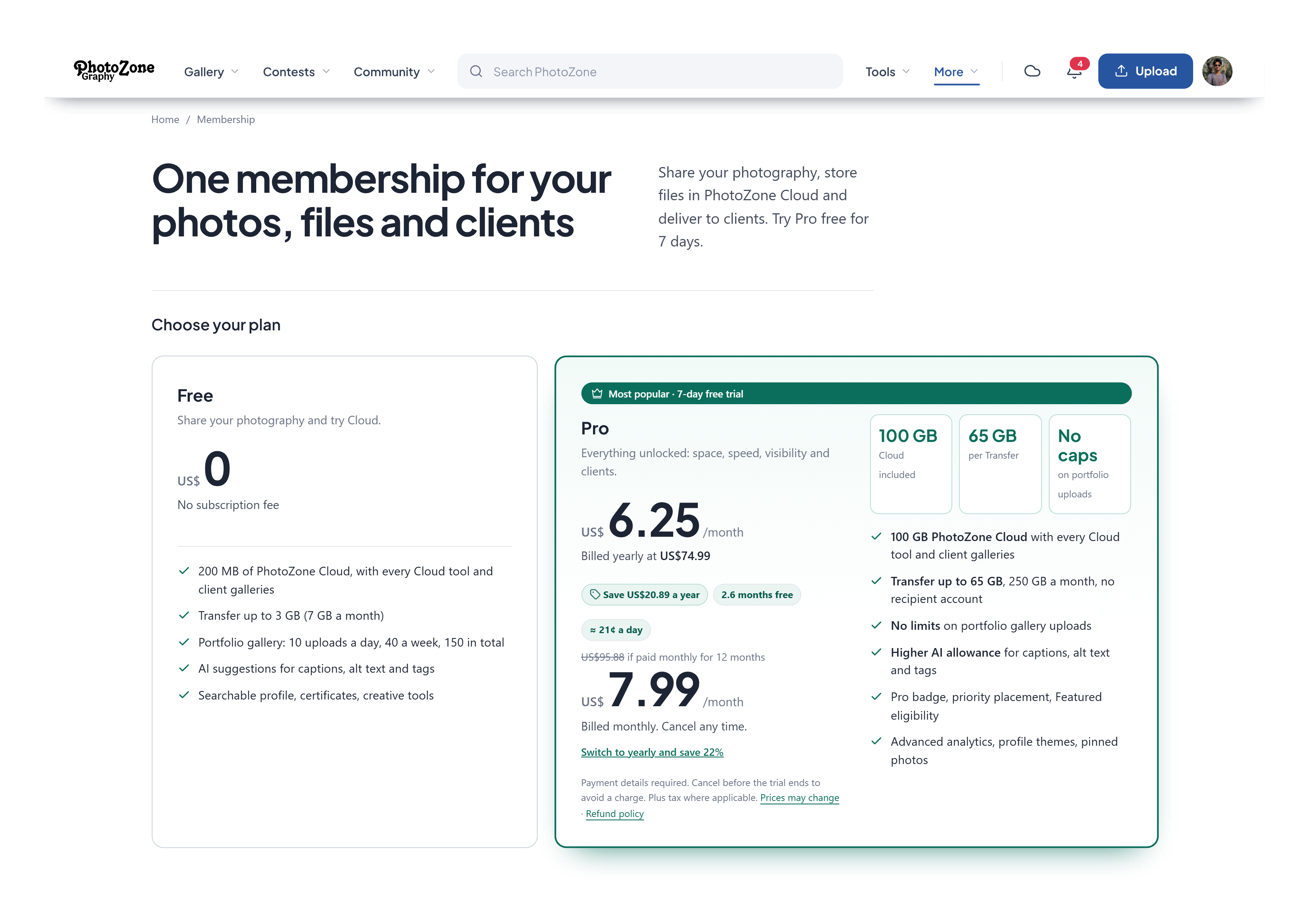
12. Is passkey authentication free on PhotoZone Graphy?
Yes. You can use the available passkey authentication feature without purchasing a Pro membership or another paid service. You only need a compatible device, browser, and supported authentication method.
Related articles
Was this article helpful?