PhotoZone Graphy makes it easier than ever to access and download your certificates. Previously, participants had to wait for the publication of a merit list PDF, search through the document to find their names, identify their Certificate IDs, and then visit the certificate claiming page to retrieve their certificates. This process could take considerable time, particularly when a competition received a large number of submissions.
That process has now been replaced with a more convenient, account-based certificate collection system.
From now on, eligible certificates will be made available directly through your PhotoZone Graphy account. Instead of searching through merit list PDFs or manually entering Certificate IDs, you can simply sign in, open your personal certificate collection, and access your available certificates.
Whether you have received a certificate for winning a photography competition, participating in an event, volunteering, contributing as a team member, or another recognized activity, your certificates will be associated with your PhotoZone Graphy account.
This guide explains how to access your certificate collection, download certificates, understand account-based certificate ownership, and receive high-quality certificate files through PhotoZone Cloud.
1. The New Certificate Claiming System
Previously, claiming a certificate involved several manual steps:
Wait for PhotoZone Graphy to publish the official merit list PDF.
Open the PDF and search for your name.
Find your Certificate ID from the published list.
Visit the certificate claiming page.
Enter your Certificate ID to retrieve and download the certificate.
This process required participants to locate their information manually before they could access their certificates.
With the new system, you no longer need to follow these steps.
Your eligible certificates are associated with your PhotoZone Graphy account and appear in your personal certificate collection. Once a certificate has been issued and added to your account, you can access it directly without searching through merit lists or manually entering a Certificate ID.
The new process is simple:
Sign in to your PhotoZone Graphy account → Open My Certificates → Select your certificate → Download it.
Merit lists and other official competition announcements may still be published separately, but you no longer need to use them to claim certificates that are available in your account.
2. How to Access Your Certificate Collection
Your personal certificate collection is available through your PhotoZone Graphy account.
The navigation process is slightly different depending on the device you are using.
On Desktop, Laptop, and Tablet
If you are accessing PhotoZone Graphy through a desktop computer, laptop, or tablet, follow these steps:
Visit the PhotoZone Graphy website.
Sign in using the PhotoZone Graphy account through which you participated in the relevant event or activity.
Once logged in, locate your profile picture in the navigation bar at the top of the website.
Click on your profile picture or hover your mouse cursor over it to expand the account menu.
Locate and select My Certificates.
You will be directed to your personal certificate collection.
Your certificate collection displays the certificates associated with your account, allowing you to access and download the available files.
On Mobile Devices
If you are accessing PhotoZone Graphy through a smartphone, first sign in to your account.
Open the account menu from your profile picture in the website's navigation area and select My Certificates. The exact appearance or positioning of the navigation menu may vary depending on your screen size and device.
Once you open My Certificates, you can browse your available certificates and access the relevant download options.
3. How to Download Your Certificates
Once you have opened your certificate collection, you can select the certificate you want to access.
Follow these steps:
Open My Certificates from your account menu.
Browse your available certificates.
Select the certificate you want to download.
Choose the available download option.
Save the certificate to your device.
You can download an available certificate as many times as you need. There is no requirement to claim it again or contact the PhotoZone Graphy team every time you want another copy.
For example, you can download the same certificate again if you lose the original file, need another copy for an application, or want to share it with an organization.
Your certificate remains associated with your PhotoZone Graphy account, so you can return to your collection whenever you need it.
4. Certificates Are Linked to Your PhotoZone Graphy Account
An important part of the new certificate system is account-based ownership.
Certificates are associated with the PhotoZone Graphy account through which the relevant contest submission or activity was registered.
For photography competitions, submissions are made using a specific PhotoZone Graphy account. When a certificate is issued for that submission, it is linked to the same account.
This ensures that certificates remain associated with the correct participant and their original submissions.
Please keep the following points in mind:
You must sign in using the account associated with your original submission or activity.
Certificates cannot be transferred from one PhotoZone Graphy account to another.
Creating another account will not automatically move your previously issued certificates to the new account.
If you participated in a contest using a different account, check that account's certificate collection.
You can download your available certificates multiple times without losing access to them.
If you cannot find a certificate, make sure you are using the correct PhotoZone Graphy account before contacting support.
5. High-Quality Certificate Files Through PhotoZone Cloud
PhotoZone Graphy also provides eligible users with access to high-quality certificate files through PhotoZone Cloud.
While your certificate collection allows you to access and download your certificates, additional certificate file versions may be delivered directly to your Cloud storage.
Depending on your eligibility and the certificate, these files may include:
PDF Print Version: A PDF version suitable for printing and maintaining a digital copy of your certificate.
PNG Version: A high-quality PNG image of your certificate.
High-Quality Version: A higher-resolution certificate image for situations where image quality and clarity are important.
The availability of specific formats may vary depending on the certificate and the files prepared for it.
Who Receives High-Quality Certificate Files in PhotoZone Cloud?
The following users are eligible to receive the additional certificate files in their PhotoZone Cloud:
Pro Members
Users with an eligible Pro membership receive their available high-quality certificate files through PhotoZone Cloud.
Verified Users
Verified users are also eligible to receive their available certificate files in PhotoZone Cloud.
Users Who Have Purchased PhotoZone Graphy Services
Even if you are using a free account, you may qualify for high-quality certificate files if you have entered a paid PhotoZone Graphy competition or purchased another eligible PhotoZone Graphy service.
For example, a free user who participates in a paid photography competition can receive the high-quality certificate files in their PhotoZone Cloud.
This means that receiving these files is not exclusively limited to Pro membership subscribers.
What About Free Users?
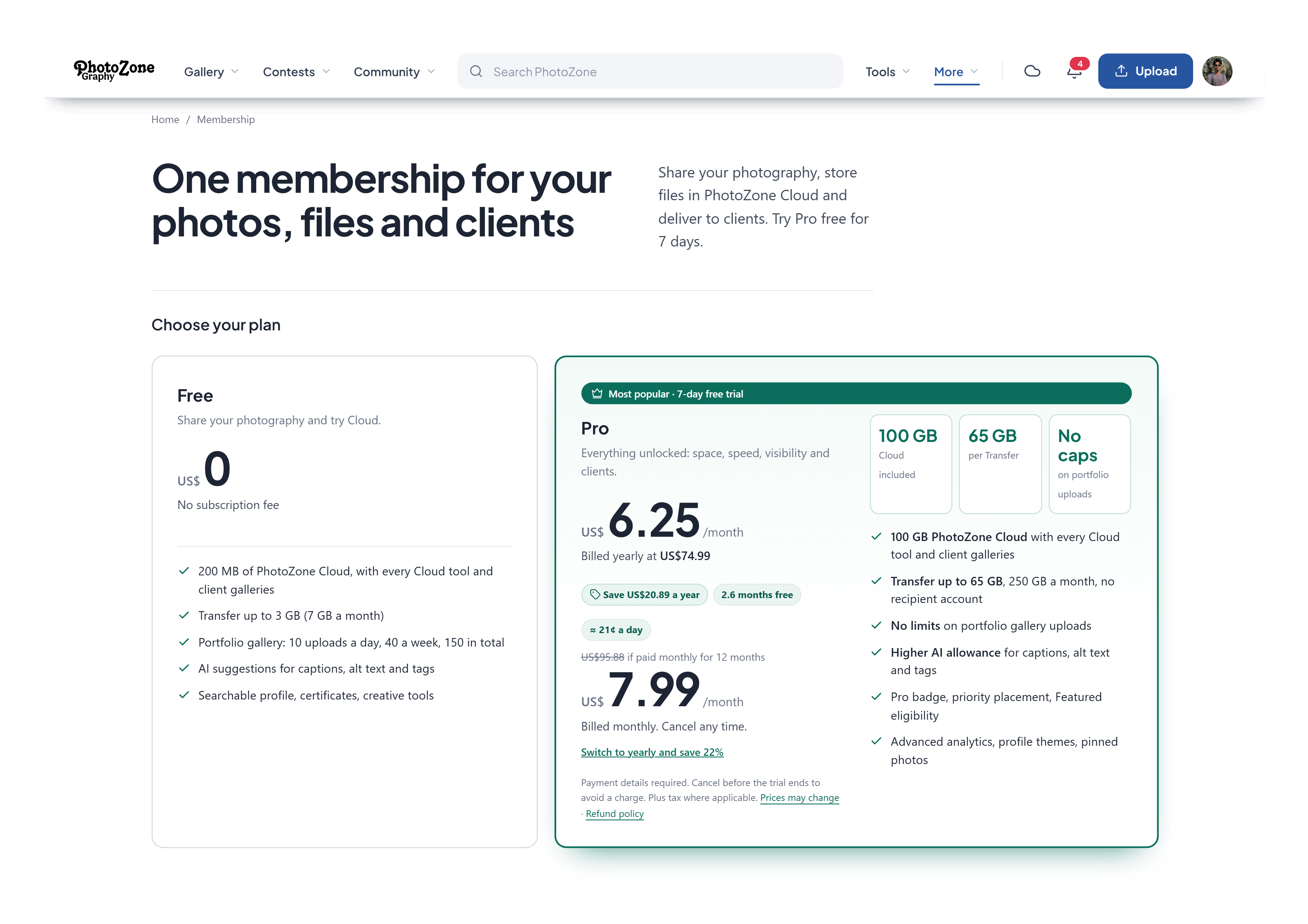
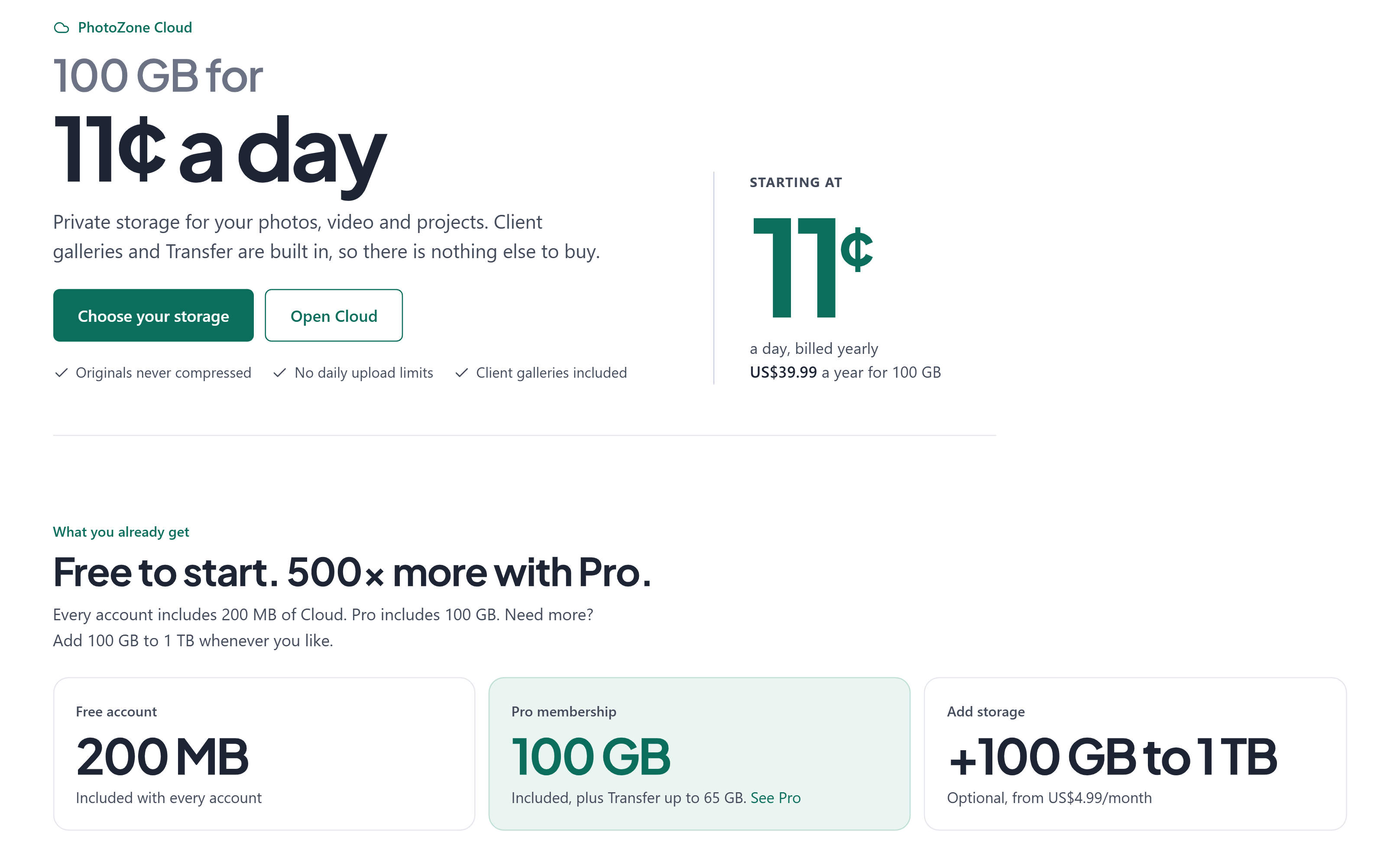
PhotoZone Graphy provides free accounts with 200 MB of PhotoZone Cloud storage so that users can explore the service and understand how it works.
If you are eligible for additional certificate files, you can use this available storage to receive and keep them.
You can later upgrade to Pro membership or purchase additional Cloud storage if you need more space.
Explore the available plans here:
6. Why Your Certificate May Not Appear in PhotoZone Cloud Immediately
Please note that additional certificate files are not necessarily uploaded to PhotoZone Cloud automatically at the exact moment a certificate is issued.
The process is handled manually by an authorized member of the PhotoZone Graphy administrative team.
Depending on the number of certificates being processed and the administrative workload, it may take some time before the PDF print version, PNG version, or other high-quality files appear in your Cloud storage.
Therefore, do not worry if your certificate is already available in My Certificates but its additional high-quality files have not yet appeared in PhotoZone Cloud.
The two processes serve different purposes:
My Certificates: Your account-based collection for accessing and downloading issued certificates.
PhotoZone Cloud: Storage for additional certificate file versions provided to eligible users.
Keep Enough Available Cloud Storage
Make sure you have sufficient free storage space in your PhotoZone Cloud account.
If your Cloud storage is full, there may not be enough available capacity to upload additional certificate files.
We recommend maintaining some unused storage space, particularly if you regularly participate in competitions or receive certificates from PhotoZone Graphy.
You can review your available storage and explore additional storage options through:
7. Can I Choose Whether My Certificate Appears on My Profile?
Yes. PhotoZone Graphy provides control over whether your certificates are displayed on your public profile, depending on the available profile settings.
However, this should not be confused with the public certificate verification system.
Certificate profile visibility and certificate verification visibility are two separate things.
Even if you choose not to display a certificate on your PhotoZone Graphy profile, its dedicated certificate verification page remains publicly accessible.
The certificate image and its associated information are made publicly available through the verification page. This allows anyone with the Certificate ID or QR code to access and review the certificate.
You cannot make an individual certificate verification page private through the profile visibility setting.
This is important because certificate verification is designed to allow independent access to issued credentials and recognition.
Review the Privacy Policy and Terms Before Participating
Before submitting photographs to competitions or participating in activities that may result in a certificate, make sure you understand how PhotoZone Graphy handles certificate information and public verification.
We strongly recommend reviewing:
Please pay particular attention to the information that may be published on certificate verification pages and how your account information and associated links may be displayed.
8. What to Do If You Cannot Find or Receive Your Certificate
If your certificate is missing from My Certificates, you cannot download it, or you have not received the eligible high-quality files in PhotoZone Cloud, you can contact PhotoZone Graphy for assistance.
Before submitting a request, check the following:
Make sure you are logged into the correct PhotoZone Graphy account.
Confirm that the relevant competition or activity has already issued its certificates.
Check your My Certificates collection.
Make sure you have sufficient available Cloud storage if you are expecting additional certificate files.
Allow some time for the administrative team to upload the high-quality files to your Cloud account.
If the issue continues, submit a support request through the official Contact page.
How to Submit a Certificate Claiming Support Request
Visit the PhotoZone Graphy Contact page.
Select Certificate as the contact topic.
Select Unable to Claim Certificate as the subtopic.
Explain the issue you are experiencing.
Provide the relevant event or competition name and your PhotoZone Graphy account details.
Include your Certificate ID if you already have it.
Submit the form.
The PhotoZone Graphy team will review your request and contact you by email if further information or assistance is required.
If the issue concerns incorrect information rather than a missing certificate, please use the dedicated Incorrect Certificate Details guide instead.
9. Frequently Asked Questions (FAQ)
Do I still need to wait for the merit list PDF to claim my certificate?
No. You no longer need to search through a merit list PDF, find your Certificate ID, and manually enter it into a claiming page. Eligible certificates are made available through your PhotoZone Graphy account under My Certificates.
Where can I find My Certificates?
Sign in to your PhotoZone Graphy account and locate your profile picture in the navigation bar. Open the account menu and select My Certificates to access your personal certificate collection.
Which account should I use to access my certificates?
You must sign in using the PhotoZone Graphy account associated with your original contest submission or the activity for which the certificate was issued.
Can I transfer my certificate to another PhotoZone Graphy account?
No. Certificates are linked to the account through which the original contest submission or relevant activity was registered. They cannot be transferred to another account.
Can I download my certificate multiple times?
Yes. You can download any available certificate as many times as you need. You do not need to submit another claiming request each time.
Do all users receive high-quality certificate files in PhotoZone Cloud?
Pro members and Verified users are eligible to receive their available high-quality certificate files. Free users who have entered a paid PhotoZone Graphy competition or purchased another eligible service can also qualify.
What certificate formats can I receive in PhotoZone Cloud?
Depending on your eligibility and the files prepared for your certificate, you may receive a PDF print version, a PNG version, and a high-quality certificate image.
Why has my certificate appeared in My Certificates but not in PhotoZone Cloud?
Your certificate collection and Cloud file delivery are separate processes. Additional high-quality files are uploaded manually by the PhotoZone Graphy administrative team, so they may take some time to appear after your certificate becomes available.
How much free Cloud storage do I receive?
PhotoZone Graphy provides 200 MB of Cloud storage with a free account so that you can try the service and store eligible files.
What happens if my PhotoZone Cloud storage is full?
If your Cloud storage does not have enough available space, additional certificate files may not be uploaded successfully. Keep sufficient free storage available or consider upgrading your storage plan.
Can I hide my certificate from my public PhotoZone Graphy profile?
You can control whether your certificate appears on your public profile through the available profile settings. However, this does not make the certificate's dedicated verification page private.
Can I make my certificate verification page private?
No. Certificate verification pages are publicly accessible. The certificate image and its associated information are made public so that others can independently verify issued certificates.
What should I do if my certificate is missing?
First, confirm that you are using the correct account and check My Certificates. If the certificate is still unavailable, visit the Contact page, select Certificate as the topic, choose Unable to Claim Certificate as the subtopic, and submit your request.
Need Help Claiming Your Certificate?
Your certificates are part of your photography journey and contributions to the PhotoZone Graphy community. The new My Certificates system makes it easier to access, download, and keep your achievements without going through the previous manual claiming process.
If you experience any difficulties accessing your certificate, visit the PhotoZone Graphy Contact page and submit a request under Certificate → Unable to Claim Certificate.
Related articles
Was this article helpful?