About
PhotoZone Graphy provides an online certificate verification system that allows individuals, organizations, institutions, and other interested parties to verify certificates issued by the platform. Whether you have received a certificate for winning a photography competition, participating in an international event, volunteering, contributing as a team member, collaborating as an advertising partner, or fulfilling another recognized role, you can verify its authenticity directly through PhotoZone Graphy's official website.
Every certificate issued by PhotoZone Graphy is assigned a unique Certificate ID and includes a dedicated QR code. These identifiers connect the original certificate to its corresponding online verification record, allowing anyone to access the certificate's information and review its details.
The verification system is designed to provide transparency, accessibility, and confidence in the certificates issued by PhotoZone Graphy. It also makes it easier for recipients to share their achievements and for employers, institutions, organizations, and other third parties to check the credentials presented to them.
This guide explains how to verify a certificate, understand the information displayed on its verification page, use its QR code, and report any errors or discrepancies.
1. Understanding PhotoZone Graphy Certificates
PhotoZone Graphy issues certificates for a variety of activities, achievements, responsibilities, and contributions within its photography community and international operations.
Certificates are not limited to competition winners. Depending on the event, program, or nature of the contribution, PhotoZone Graphy may issue certificates to:
Competition Winners: Photographers who secure positions or receive special awards and recognitions in photography competitions organized or hosted by PhotoZone Graphy.
Competition Participants: Photographers who successfully participate in eligible contests, exhibitions, and other organized photography events.
Volunteers: Individuals who contribute their time and efforts to support PhotoZone Graphy's activities, events, competitions, and community initiatives.
Team Members: Individuals who serve in different organizational, operational, administrative, creative, or other official capacities within PhotoZone Graphy.
Jurors and Guest Jurors: Photography professionals and invited individuals who contribute their expertise to judging, evaluating, or reviewing competition submissions.
Advertising and Media Partners: Organizations, businesses, and individuals recognized for their promotional, advertising, media, or partnership contributions.
Other Contributors and Recognized Individuals: Individuals or organizations receiving certificates for other officially acknowledged contributions, collaborations, services, or achievements.
The type of certificate, its information, and the details displayed on the verification page depend on the purpose for which it was issued.
Regardless of the certificate category, each issued certificate can be verified through its unique Certificate ID or QR code.
2. How to Verify a Certificate Using Its Certificate ID
The Certificate ID is a unique identification number assigned to each certificate issued by PhotoZone Graphy. It allows you to retrieve the corresponding certificate record through the official verification system.
Follow these steps:
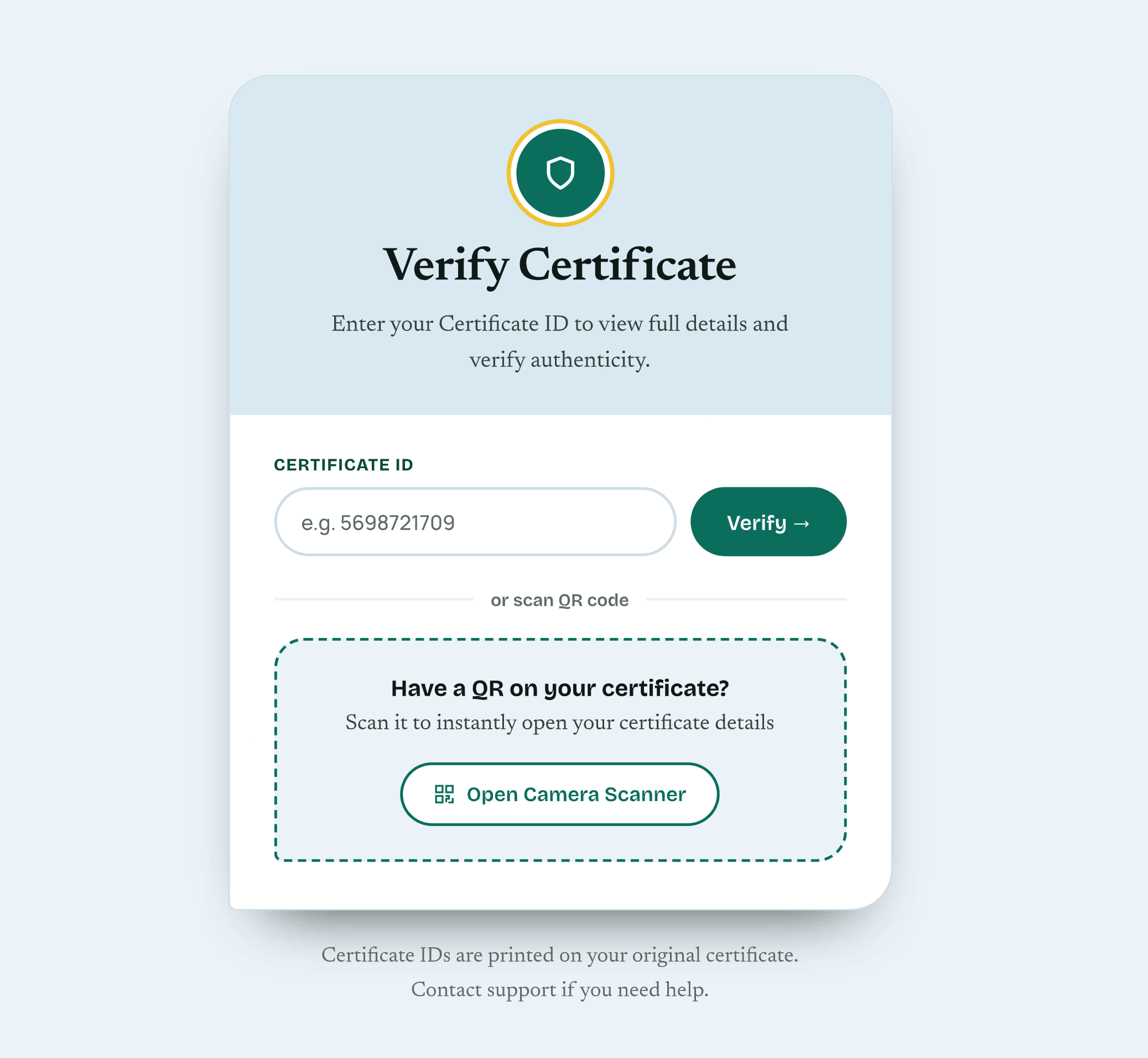
Locate the Certificate ID input field.
Find the Certificate ID printed on the original certificate.
Enter the complete identification number into the field.
Select Verify to retrieve the certificate information.
If the entered ID corresponds to an available certificate record, PhotoZone Graphy will display its dedicated verification page.
The page provides the certificate's available information, including the recipient's name, certificate type, associated event or activity, issuance details, and other relevant information.
Make sure you enter the complete Certificate ID correctly. Even a missing or incorrect digit may prevent the system from locating the intended certificate.
3. Verify a Certificate by Scanning Its QR Code
Every certificate issued by PhotoZone Graphy includes a unique QR code that links directly to its corresponding online verification page.
Scanning the QR code is the fastest and most convenient way to verify a certificate. Instead of manually entering the Certificate ID, you can scan the code and immediately access the certificate's online record.
How to scan the certificate QR code:
Open the camera application on your smartphone or use a QR code scanning application.
Position your camera so that the QR code printed on the certificate is clearly visible.
Wait for your device to recognize the code and display the associated link.
Tap the link to open the certificate's verification page in your browser.
Review the displayed certificate information.
You can also use the Open Camera Scanner option available on the PhotoZone Graphy verification page, where supported by your device and browser.
QR code verification eliminates the need to type the Certificate ID manually and reduces the possibility of entering an incorrect identification number.
Important: Always make sure that the QR code opens a page on the official PhotoZone Graphy website. A genuine certificate's QR code should direct you to its corresponding certificate verification record.
4. Understanding the Certificate Verification Page
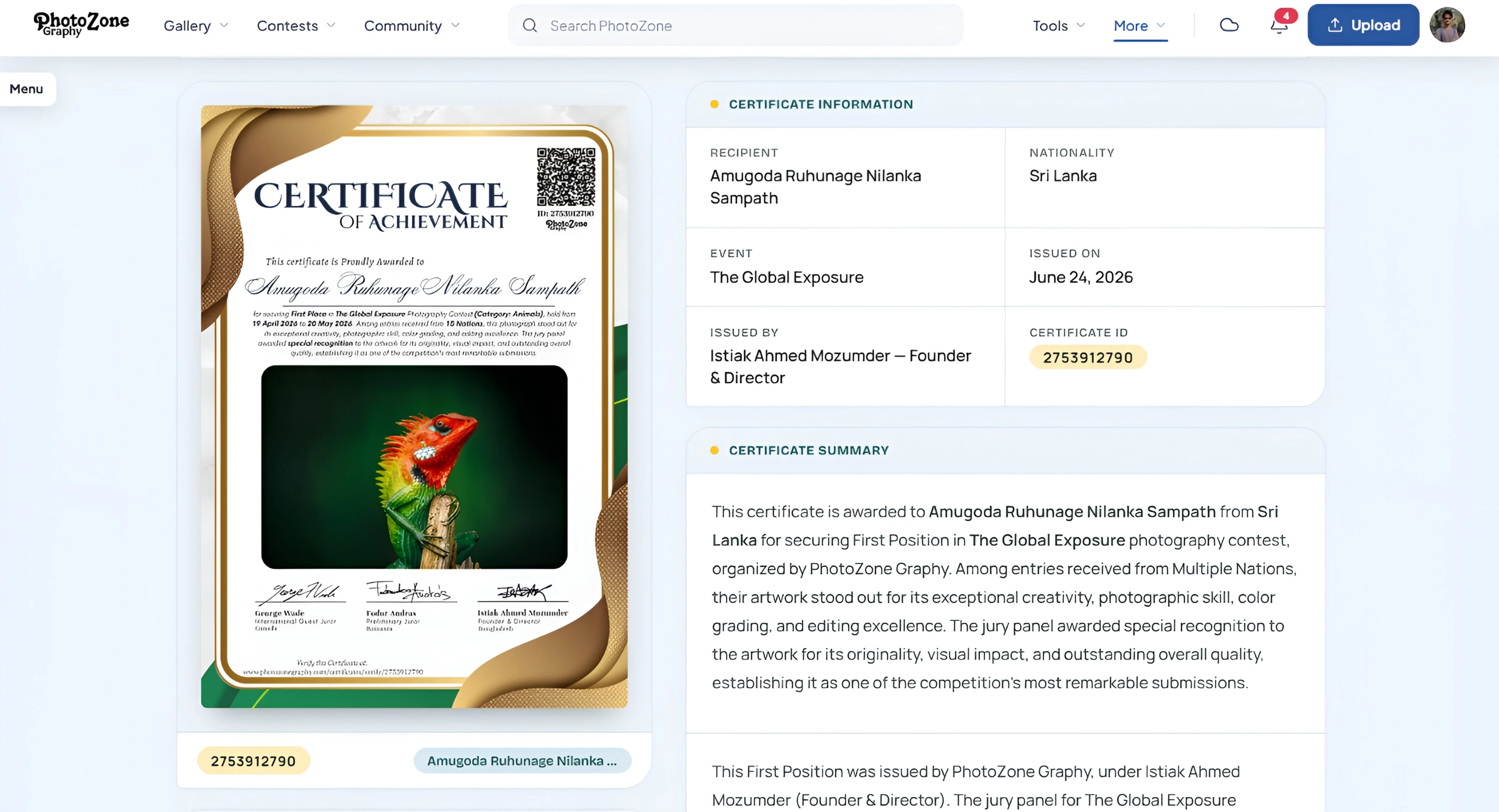
After successfully verifying a certificate, you will be directed to its dedicated online page. This page contains the available information associated with the certificate and provides a convenient way to review its authenticity and details.
Although the information varies depending on the certificate type, the verification page may contain the following sections.
Certificate Recipient and Recognition
The top section identifies the certificate recipient and the recognition, achievement, or role for which the certificate was issued.
For competition-related certificates, this may include the recipient's name, contest title, category, and awarded position. For other certificates, it may display the relevant role, contribution, participation, or recognition.
For example, a competition award certificate may display:
Recipient's full name
Competition or event name
Photography category
Award position or recognition
Certificate authenticity status
This information helps visitors understand what the recipient has been recognized for.
Certificate Authenticity Status
The verification page displays an authenticity indicator when the certificate record is successfully retrieved.
A verified certificate record allows visitors to access the information maintained by PhotoZone Graphy and compare it with the original certificate.
The verification status should be considered alongside the certificate information itself. Check that the recipient's name, award or recognition, event, and other relevant details correspond to the original document.
Certificate QR Code
The verification page may also display the certificate's QR code. This is the same unique QR code associated with the original certificate.
It can be scanned or shared to help others access the corresponding verification page.
Certificate Information
The Certificate Information section provides the main details associated with the issued certificate. Depending on the certificate, this may include:
Recipient: The full name of the individual or organization receiving the certificate.
Nationality: The recipient's recorded nationality, where applicable.
Event or Activity: The name of the competition, exhibition, program, organizational activity, or other initiative associated with the certificate.
Category: The relevant photography category or classification, where applicable.
Award or Recognition: The position, achievement, role, contribution, or recognition for which the certificate was issued.
Issued On: The official date on which the certificate was issued.
Issued By: The authorized person or representative responsible for issuing the certificate.
Certificate ID: The unique identification number assigned to the certificate.
Not every certificate contains all these fields. For example, a volunteer certificate may contain information about the volunteer's role or contribution rather than a competition category or award position.
Certificate Summary
Some verification pages include a Certificate Summary that provides additional context about the recognition or achievement.
For competition certificates, this may describe the recipient's performance, award, photography category, and relevant details about the competition.
For volunteer, team member, partnership, and other certificates, the summary may explain the individual's role, responsibilities, contribution, or the reason for the recognition.
The summary helps visitors understand the purpose and significance of the certificate beyond its basic identification details.
5. Understanding the Jury Panel and Signed By Sections
Some PhotoZone Graphy certificates include both a Jury Panel section and a Signed By section. Although these sections may contain names of the same individuals, they have different meanings and should not be confused.
Jury Panel
The Jury Panel section identifies the individuals associated with evaluating, judging, organizing, or managing the relevant competition, depending on their designated responsibilities.
For photography competitions, this section may include:
International guest jurors
Preliminary or selection jurors
Final-round jurors
Other designated jury members
Relevant core team members responsible for managing the competition
The section provides transparency about the people involved in the competition's evaluation process and, where applicable, its organization and management.
For example, a competition certificate may display an International Guest Juror from Canada, a Preliminary Juror from Romania, and a PhotoZone Graphy representative from Bangladesh.
Important: The Jury Panel identifies individuals associated with the competition. It does not necessarily mean that every person listed personally signed the recipient's certificate.
Signed By
The Signed By section identifies the individuals whose signatures appear on the certificate.
These are the authorized representatives, officials, jurors, or other designated individuals who have signed the certificate to formally endorse or authorize its issuance.
Depending on the certificate, this section may include:
PhotoZone Graphy's Founder or Director
Authorized organizational representatives
Competition directors or officials
Relevant jurors or guest jurors
Other designated signatories
The purpose of this section is to provide transparency about whose signatures are present on the issued certificate.
The difference is simple:
Jury Panel: Shows the individuals associated with judging, evaluating, or managing the relevant competition.
Signed By: Shows the individuals whose signatures appear on the certificate.
An individual may appear in both sections, but being listed in the Jury Panel does not automatically mean that their signature is present on the certificate.
For certificates that are not related to competitions, the Jury Panel section may not be applicable. The Signed By section, where included, identifies the authorized signatories for that particular certificate.
6. Sharing a Verified Certificate
PhotoZone Graphy makes it easy for certificate recipients to share their achievements and recognitions with friends, colleagues, employers, institutions, organizations, and their wider professional networks.
After opening the certificate verification page, you may find several sharing options:
Share on Facebook: Publish your certificate or achievement on Facebook using its official verification link.
Share on WhatsApp: Send the certificate link directly to individuals or groups through WhatsApp.
Share Certificate: Use your device's native sharing feature to share the certificate through supported applications.
Copy Certificate Link: Copy the official verification URL and share it through emails, websites, professional portfolios, social media, or other communication platforms.
Sharing the verification link allows others to access the certificate's online record directly. They do not need to rely exclusively on a screenshot or image of the original certificate.
Recipients can also share their certificate link on professional profiles, portfolios, applications, and other platforms where proof of an achievement or contribution may be useful.
7. What to Do If a Certificate Cannot Be Verified
If you enter a Certificate ID but the system cannot retrieve the corresponding record, there are several things you can check before contacting support.
Check the Certificate ID: Make sure that you have entered the complete identification number printed on the original certificate.
Check for typing errors: Look for missing digits, accidental spaces, or incorrectly entered numbers.
Try QR code verification: If the Certificate ID is difficult to read, scan the QR code printed on the original certificate to open its verification page directly.
Check your internet connection: The verification page requires an active internet connection to retrieve certificate information.
Use the official website: Make sure you are accessing the PhotoZone Graphy verification page rather than an unofficial or unrelated website.
If the issue persists, contact PhotoZone Graphy Support and provide your Certificate ID along with a description of the problem.
8. Reporting Incorrect Certificate Information
PhotoZone Graphy aims to maintain accurate certificate records. However, if you notice an error or discrepancy in a certificate, you should report it so that the information can be reviewed.
Incorrect information may include:
Misspelled or incorrectly displayed recipient names
Incorrect nationality or personal details
Wrong award positions or recognition titles
Incorrect competition names or categories
Incorrect issuance dates
Missing or inaccurate information about roles, contributions, or activities
Other discrepancies between the original certificate and its online verification record
If your certificate contains incorrect information, visit the dedicated Help Centre article:
How to Report Incorrect Certificate Details
Follow the instructions provided in that guide to submit a correction request. Include your Certificate ID and clearly explain which information needs to be corrected.
Providing the relevant details helps the PhotoZone Graphy team locate the certificate and review the issue more efficiently.
Please do not create a new certificate verification request simply because a displayed detail is incorrect. Use the dedicated correction procedure so that the existing certificate record can be reviewed.
9. Frequently Asked Questions
How can I verify a PhotoZone Graphy certificate online?
Visit the official Certificate Verification page at https://photozonegraphy.com/certificates/verify. Enter the unique Certificate ID printed on your original certificate and select Verify. Alternatively, scan the certificate's QR code to open its online verification page directly.
Does every PhotoZone Graphy certificate have a unique Certificate ID?
Yes. Every certificate issued by PhotoZone Graphy is assigned a unique Certificate ID that can be used to retrieve its corresponding online verification record.
Does every PhotoZone Graphy certificate include a QR code?
Yes. Every issued certificate includes a QR code linking to its corresponding online verification page. Scanning the code is the fastest way to access the certificate record.
Do I need a PhotoZone Graphy account to verify a certificate?
No. Certificate verification is publicly accessible. You do not need to register, sign in, or create an account to verify a certificate using its Certificate ID or QR code.
Can I verify certificates issued to volunteers, team members, or advertising partners?
Yes. PhotoZone Graphy's verification system is not limited to photography competition awards. Certificates issued to volunteers, team members, advertising partners, participants, winners, and other recognized individuals or organizations can also be verified through their unique Certificate IDs or QR codes.
Can I verify someone else's certificate?
Yes. Anyone can access the public verification page and check a certificate if they have its Certificate ID or QR code. You do not need to be the certificate recipient.
What is the difference between Jury Panel and Signed By?
The Jury Panel identifies individuals associated with judging, evaluating, or managing a competition. The Signed By section identifies the individuals whose signatures appear on the certificate. A person may appear in both sections, but the two sections represent different responsibilities.
Why does my certificate not have a Jury Panel section?
Not every certificate is related to a photography competition. Certificates issued for volunteering, organizational responsibilities, partnerships, and other activities may not require a Jury Panel section.
Can I share my certificate on social media?
Yes. You can share your certificate using the available Facebook and WhatsApp sharing options, your device's native sharing feature, or the Copy Certificate Link option. The shared link directs visitors to the official online verification page.
What should I do if my Certificate ID is not working?
First, check the identification number for typing errors and try scanning the QR code on your original certificate. If you still cannot access the certificate, contact PhotoZone Graphy Support with your Certificate ID.
What if my certificate has an incorrect name or award position?
Visit the Incorrect Certificate Details Help Centre article and follow the correction procedure. Include your Certificate ID and the details that need to be reviewed.
Can an employer or institution verify my certificate?
Yes. Employers, educational institutions, organizations, and other third parties can independently access the public certificate verification page using the Certificate ID or QR code provided by the certificate recipient.
Need Further Assistance?
If you experience any difficulties verifying a certificate, cannot locate your certificate record, or have questions about the information displayed on the verification page, contact PhotoZone Graphy through its official support channels.
For incorrect names, award positions, or other certificate details, please use the dedicated Incorrect Certificate Details guide.
Related articles
Was this article helpful?