Introduction
The PhotoZone Graphy PDF to Image Converter is a free, browser-based utility that allows users to convert PDF documents into high-quality JPG, PNG, or WebP images quickly and conveniently. Whether you need to extract individual pages from a PDF, convert an entire document into separate images, prepare pages for sharing, or use PDF content in photography and creative projects, this tool provides a straightforward solution without requiring additional software or applications.
Designed with simplicity, flexibility, and privacy in mind, the converter offers several useful features, including batch conversion, custom page selection, adjustable image resolution (DPI), JPG and WebP quality settings, image previews, and ZIP downloads. Users can process multiple PDF documents simultaneously and download their converted pages individually or collectively.
Unlike many online conversion services, PhotoZone Graphy's PDF to Image Converter does not require users to create an account, purchase a subscription, or upload documents to an external server. The entire conversion process takes place locally within the user's web browser, keeping the original documents on their own device.
The tool is available to everyone, completely free of charge, and can be accessed directly through the PhotoZone Graphy website.
Tool Type and Availability
The PDF to Image Converter is a free, browser-based conversion utility. It is designed to operate directly within a modern web browser rather than relying on a desktop application, downloadable software, or a remote conversion service.
Being browser-based means users do not need to install any additional programs or configure complicated software to convert their documents. Simply visit the PhotoZone Graphy website, open the PDF to Image tool, select the desired settings, and begin converting.
The tool is available without a paid membership or subscription. Both registered and unregistered visitors can use its conversion functionality without purchasing a PhotoZone Graphy plan. There are no conversion credits, usage-based charges, or hidden payment requirements.
It supports three output formats: JPG, PNG, and WebP. Users can also choose between single-document conversion and batch processing, depending on their requirements.
Since the tool runs within the browser, its availability and performance depend on the capabilities of the user's browser and device. A modern browser with sufficient available memory is recommended for the best experience.
How to Use the PDF to Image Converter
Using the converter is straightforward and does not require technical knowledge. The following instructions explain the complete conversion process, from selecting a document to downloading the resulting images.
Step 1: Open the Converter
Visit PhotoZone Graphy and navigate to Tools → PDF to Image. You can access the converter directly from the Tools section of the website.
Once the page loads, you will find the conversion interface, where you can select your PDF documents and configure the output settings.
Step 2: Select a Conversion Mode
The converter provides two processing modes:
Single PDF: Select this option when you want to convert one PDF document. It is suitable for everyday conversion tasks, including extracting pages from documents, converting presentations, and preparing individual PDF pages as images.
Batch (2–5 PDFs): Select batch mode when you need to convert multiple PDF documents simultaneously. You can select up to five PDF files in one batch, allowing you to process several documents without repeating the entire procedure for each file.
Batch conversion is particularly useful when working with multiple documents, reports, portfolios, or collections of PDF files.
Step 3: Upload Your PDF Documents
Click the upload area or drag and drop your PDF document directly into the designated section.
The converter accepts PDF files only, with a maximum individual file size of 50 MB. In batch mode, you can select up to five documents, each adhering to the same file-size restriction.
After selecting your documents, the tool will prepare them for processing. Make sure that the files are valid and accessible before proceeding.
Step 4: Choose the Output Format
Select the image format in which you want your PDF pages to be converted. Three formats are available:
JPG: A widely supported image format that provides good visual quality with relatively compact file sizes. It is suitable for general-purpose sharing, viewing, and everyday use.
PNG: A lossless image format that preserves image details without introducing additional compression artifacts. It is useful when maintaining visual accuracy is important, although the resulting files can be considerably larger.
WebP: A modern image format that provides efficient compression while maintaining good visual quality. It is particularly useful for web publishing and situations where smaller file sizes are desirable.
The appropriate format depends on how you intend to use the converted images. JPG is generally suitable for everyday use, PNG is useful when lossless output is preferred, and WebP is an efficient choice for web-based applications.
Step 5: Configure the Page Range
The page-range settings allow you to convert specific pages instead of processing the entire document.
You can specify the starting page using the From field and the ending page using the To field. For example, if you only need pages 3 through 8, enter 3 as the starting page and 8 as the ending page.
If you leave the ending page blank, the converter will process all remaining pages from the selected starting page. You can also leave the page-range settings at their default values to convert the entire document.
This feature is particularly useful for lengthy PDF documents where only a few pages are required.
Step 6: Adjust the Resolution (DPI)
The converter allows you to select an output resolution between 72 and 300 DPI (Dots Per Inch).
DPI determines the rendering resolution of the converted pages. Generally, a higher DPI produces larger images with more pixel detail, while a lower DPI produces smaller images that require less storage space.
The available resolution settings are:
72 DPI: Suitable for basic screen viewing and smaller output files.
150 DPI: A balanced option for general viewing and document sharing.
300 DPI: Suitable for high-resolution output when preserving fine details is important.
Higher resolution does not automatically improve the quality of the original PDF. It determines how finely the PDF page is rendered into an image.
Keep in mind that increasing DPI can significantly increase processing time, memory consumption, and the size of the resulting images.
Step 7: Adjust Image Quality
The quality setting allows you to control the compression quality of the output.
This setting affects JPG and WebP conversion. A higher quality percentage generally preserves more visual detail but produces larger files. A lower percentage applies stronger compression, reducing file size at the expense of some image detail.
The converter provides a quality setting of up to 100%. Select a value according to your requirements:
100%: Prioritises visual quality with less compression.
80–90%: Provides a practical balance between image quality and file size.
60–70%: Produces smaller files when storage efficiency is more important.
PNG conversion is not affected by this quality slider because PNG uses lossless compression.
Step 8: Start the Conversion
After configuring your preferred settings, click the Convert to Images button.
The browser will begin processing the selected PDF documents and rendering their pages into individual images. Processing time depends on several factors, including the number of pages, selected DPI, document complexity, device performance, and available memory.
Avoid closing or refreshing the browser tab while conversion is in progress. Doing so may interrupt the operation and require you to start again.
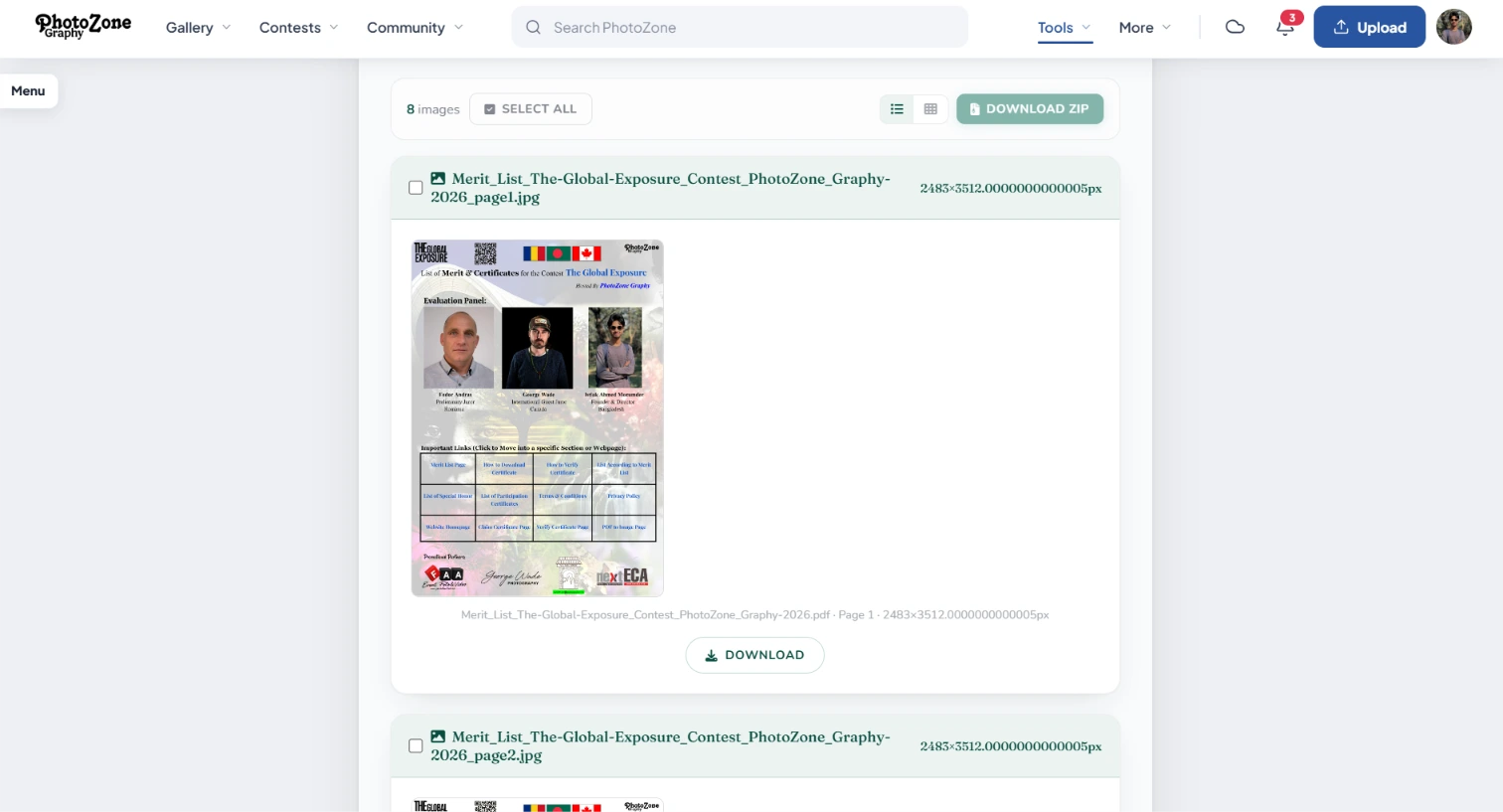
Step 9: Preview and Download Your Images
Once conversion is complete, the resulting images will be available for preview.
You can inspect individual pages to ensure that the conversion has produced the expected results. If you only need a particular page, you can download that image individually.
Alternatively, you can select multiple converted pages and download them together as a single ZIP archive. This is especially convenient when converting documents containing many pages, as it avoids downloading each image separately.
After downloading, extract the ZIP archive using your device's built-in extraction utility or any compatible archive application.
Privacy and Security
Privacy is one of the fundamental design principles behind PhotoZone Graphy's PDF to Image Converter.
Unlike conventional online PDF conversion services that require users to upload documents to remote servers, this converter performs the entire conversion process locally within the user's browser. Your PDF documents are processed directly on your own device rather than being transferred to PhotoZone Graphy's servers for conversion.
This means:
Your original PDF documents are not uploaded to PhotoZone Graphy.
The conversion process takes place locally within your browser.
Converted images are generated on your device.
No external conversion server is required to process your documents.
You do not need to create an account or provide personal information to use the converter.
Because files remain on your device during processing, PhotoZone Graphy does not receive copies of your documents through the conversion process.
Even the founder of PhotoZone Graphy uses this tool for PDF conversion, reflecting the practical importance of having a convenient conversion utility that does not require uploading personal or professional documents to an external service.
An important distinction: Browser-based processing protects your documents from being uploaded to the conversion service, but it does not replace general device and browser security. Always use a trusted, up-to-date browser, keep your device secure, and avoid opening PDF files from untrusted sources.
Limitations and System Requirements
PhotoZone Graphy's PDF to Image Converter is completely free to use, with no paid conversion tiers, subscription requirements, or conversion-credit restrictions.
There is no charge for using the available conversion features. However, certain technical restrictions and device-related limitations apply.
File size: Each uploaded PDF must be no larger than 50 MB. This restriction applies to individual files, including files selected for batch conversion.
Batch processing: The batch mode supports a maximum of five PDF documents per conversion session.
Output formats: The converter currently supports JPG, PNG, and WebP. Other image formats are not currently available as direct output options.
Resolution: The available output resolution ranges from 72 to 300 DPI. Users cannot select a resolution outside this range.
Browser compatibility: The converter requires a modern browser that supports the necessary PDF rendering and browser-based processing technologies. Outdated browsers may experience compatibility issues or unexpected behaviour.
Device performance: Although there are no paid usage restrictions, the practical performance of the converter depends on the user's hardware. Devices with limited RAM, older processors, or insufficient available system resources may experience slower conversion, temporary freezing, or browser instability when processing large or complex documents.
Available memory: Converting PDF pages into high-resolution images can require considerable memory. Large documents, high DPI settings, and multiple simultaneous PDF conversions can increase memory consumption significantly.
These limitations are primarily technical rather than subscription-related. PhotoZone Graphy aims to make the converter freely accessible while allowing users to process documents within the practical capabilities of their devices.
How Does the Converter Work?
The PDF to Image Converter uses browser-based PDF rendering technology to transform PDF pages into individual image files.
When you select a PDF document, the browser reads the document locally and prepares its contents for rendering. Instead of sending the file to an external server, the conversion engine processes the document directly on your device.
The conversion process generally involves several stages.
1. Reading the PDF: The browser loads the selected PDF file into its local processing environment. The document's structure, page information, text, images, fonts, and other visual elements are interpreted by the PDF rendering engine.
2. Rendering individual pages: Each selected PDF page is rendered into a visual representation. The selected DPI determines the rendering scale and therefore the pixel dimensions of the resulting image.
3. Generating image data: Once a page has been rendered, the browser converts its visual representation into image data using the selected output format. Depending on the selected format, the browser applies the appropriate encoding and compression process.
4. Preparing downloadable files: The generated images are made available for preview and individual download. When multiple pages are selected for a collective download, the converter packages the images into a ZIP archive.
5. Saving the results: The browser provides the generated files for download through your device's normal download mechanism. The user can then save, organise, share, or use the images as required.
The entire process takes place within the browser's local environment. An active internet connection is required to initially access the PhotoZone Graphy website, but the actual document conversion does not require uploading the PDF to a remote conversion server.
Why Can Conversion Feel Slow?
Although the converter is designed to process documents directly within the browser, conversion speed can vary considerably between devices and documents.
It is important to understand that browser-based processing is not the same as having a dedicated high-performance conversion server. Your device performs the rendering, image generation, compression, and other processing operations.
Several factors can influence the time required to complete a conversion.
PDF page count: A document containing 100 pages naturally requires more processing than a document containing only five pages. Each selected page must be rendered and converted individually.
Selected DPI: Resolution is one of the most significant factors affecting processing time. At 300 DPI, a page requires substantially more pixels than at 72 DPI. This increases rendering workload, memory consumption, and image-generation time.
Document complexity: Not all PDF documents are equally demanding. A simple text-based document may convert relatively quickly, whereas a document containing high-resolution photographs, complex vector graphics, transparency effects, embedded fonts, and numerous visual elements may take longer.
Output format and quality: Different output formats have different encoding and compression requirements. JPG and WebP quality settings can influence the amount of processing required during image generation.
Batch conversion: Processing several PDF documents simultaneously can increase the demand on your device's processor and available memory. This may result in longer processing times compared with converting one document at a time.
Device specifications: The processor, RAM, browser version, and available system resources all influence performance. Older computers, entry-level laptops, and devices with limited memory may take noticeably longer to complete demanding conversions.
Other running applications: If several applications or browser tabs are consuming system resources, fewer resources remain available for PDF conversion. Closing unnecessary applications and browser tabs can sometimes improve performance.
For these reasons, a conversion that takes only a few seconds on a modern computer may take considerably longer on a low-configuration device.
A slower conversion does not necessarily indicate that the tool is malfunctioning. In many cases, it simply reflects the amount of work your device needs to perform.
How to Improve Conversion Speed
If you experience slow conversion, consider the following recommendations:
Use 150 DPI instead of 300 DPI when maximum resolution is unnecessary.
Convert fewer PDF documents at a time.
Select only the pages you actually need.
Close unnecessary applications and browser tabs.
Ensure that your device has sufficient available RAM.
Use an updated version of a modern browser.
Avoid running other demanding applications during conversion.
These steps can help reduce processing requirements and improve the overall experience.
Understanding DPI and Image File Sizes
One important consideration when converting PDFs is the relationship between resolution, image dimensions, and file size.
DPI (Dots Per Inch) determines the rendering resolution of a PDF page. Increasing the DPI increases the number of pixels used to represent that page.
For example, rendering the same page at 300 DPI produces a much larger image than rendering it at 72 DPI. This can preserve more fine details, but it also increases memory usage, processing time, and storage requirements.
The resulting file size also depends on the selected image format, image content, and compression quality.
A photograph-heavy PDF may produce significantly larger images than a simple text-based document, even when both have the same page dimensions and DPI settings.
For everyday screen viewing, 150 DPI is often sufficient. For documents where fine details need to be retained, 300 DPI may be more appropriate.
Choosing the right settings can help you achieve a practical balance between image quality, processing speed, and storage consumption.
Batch Conversion Explained
Batch conversion is designed for users who regularly work with multiple PDF documents.
Instead of opening the converter and processing each document separately, you can select up to five PDF files in batch mode and process them together.
This can save time when working with collections of reports, documents, presentations, portfolios, or other PDF materials.
The selected conversion settings are applied to the documents being processed. This includes the output format, resolution, quality, and page-range configuration.
Once processing is complete, you can preview the resulting images and download them individually or collectively through ZIP archives.
Although batch processing is convenient, it can require more system resources than single-document conversion. If your device has limited memory or processing power, converting documents in smaller batches may provide a smoother experience.
Frequently Asked Questions
Is the PDF to Image Converter completely free?
Yes. The converter is completely free to use. There are no subscriptions, paid features, conversion credits, or hidden charges.
Do I need a PhotoZone Graphy account?
No. You can use the PDF to Image Converter without registering or signing in to PhotoZone Graphy.
Are my PDF files uploaded to PhotoZone Graphy's servers?
No. The conversion process takes place locally within your browser. Your PDF documents are not uploaded to PhotoZone Graphy's servers for conversion.
Can I convert multiple PDF files at once?
Yes. Select Batch mode to process up to five PDF documents simultaneously. Each document can be up to 50 MB in size.
What is the maximum PDF file size?
Each PDF document can be up to 50 MB.
Can I convert only selected pages?
Yes. Use the From and To fields to specify the page range you want to convert. You do not need to process the entire document.
Which image formats are supported?
The converter supports JPG, PNG, and WebP.
What is the best DPI setting?
It depends on your intended use. 150 DPI is a good general-purpose option, while 300 DPI is preferable when you need higher-resolution images and more detail.
Does the quality setting affect all image formats?
No. The quality slider affects JPG and WebP output. PNG uses lossless compression, so the quality slider does not affect PNG conversion.
Why is my conversion taking so long?
Conversion speed depends on the PDF's page count, complexity, selected DPI, output settings, and your device's available processing power and memory. High-resolution conversion and batch processing can require considerably more resources.
Can I use the converter on a mobile phone?
The converter is browser-based and can be accessed through compatible mobile browsers. However, processing large documents or multiple PDFs may be more demanding on mobile devices because of their hardware and memory limitations.
Do I need an internet connection during conversion?
You need an internet connection to access the PhotoZone Graphy website and load the converter. Once the required tool resources and PDF processing components are loaded, the actual conversion takes place locally in your browser and does not require uploading documents to an external server.
Can I download individual pages instead of the entire document?
Yes. You can preview the converted pages and download individual images. You can also select multiple pages and download them together as a ZIP archive.
Does 300 DPI always produce better results?
Not necessarily. A higher DPI creates larger pixel dimensions, but it cannot restore details that are missing from the original PDF. It is useful when you need finer rendering, but it also increases processing requirements and file sizes.
Why does my browser sometimes become unresponsive?
Rendering several high-resolution pages can consume substantial system memory and processing resources. If your device has limited RAM, the browser may temporarily become unresponsive. Try reducing the DPI, processing fewer pages, or closing other applications.
Does the converter store my converted images?
The conversion is performed locally in your browser. The resulting images are provided for download rather than being uploaded to a PhotoZone Graphy conversion server. Your downloaded copies remain under your control.
Related articles
Was this article helpful?